

Sudachi Emulator APK
I’m drawn to big titles like The Legend of Zelda: Tears of the Kingdom and Super Mario Odyssey. But to be honest, buying a Switch console along with peripherals and games can be quite an expense. The Sudachi Emulator gives me a new option. I don’t need physical consoles to play these games smoothly.
| Name | Sudachi Emulator |
| Latest Version | 7eff2ce |
| Size | 37.8 MB |
| Update on | 1 Hour Ago |
| Compatible with | Android 11.0+ |
| Price | Free |
| Developer | Sudachi Development Team |
What Is Sudachi Emulator:
The Sudachi Emulator feels like having a real Switch installed on my device and computer. It doesn’t just run games, and it can fully simulate the Switch’s hardware system using software. This includes the CPU, GPU, memory, controller input, and sound output. Now, I can run games that were console-only before on my devices.
Key Features of Sudachi Emulator:
- Experience graphics that go beyond the console
I played Tears of the Kingdom on the Switch, and it was a good experience, but the resolution and framerate were limited. Now, with a good PC and the Sudachi Emulator, I can play at 4K or even 8K resolution. The framerates stay above 60. The clear visuals and smooth action make me feel like I’ve upgraded my life. - Play different classic games
There are so many interesting mods made for popular Switch games. For example, you could add a new character to Mario or improve Zelda with a patch. I can unlock new features now, like fast travel and unlimited items. - Play the games I want to play
I was worried at first. I feared that after a long download, I might not be able to play. After using it, I discovered that the Sudachi Emulator supports a wide range of games. Most popular games run smoothly on it. Games like Fire Emblem, Splatoon, and Xenoblade Chronicles usually start up just fine. The experience is quite stable, too. - Adjust according to my device
I can adjust the resolution by hand. I can also lock the framerate and optimize CPU and memory use based on my computer’s performance. For example, when I’m out with my laptop, I lower the graphics quality to maintain smooth performance. When I come home and connect to my desktop, I crank it up to 4K with a high framerate. - Graphics API support
After using Sudachi Emulator, I found its graphics settings particularly thoughtful. It supports two rendering backends: Vulkan and OpenGL. For instance, my computer’s graphics card is NVIDIA, so Vulkan runs more smoothly. However, some friends using integrated graphics find OpenGL to be more stable. You can switch depending on your device and specific game.
Cons:
- The new game is not fully compatible yet
Some new games might freeze when you open them. You may also see screen glitches and graphical errors. In serious cases, these issues can cause crashes. - Legal file support is required
To use the Sudachi Emulator, you must provide the Switch’s prod.keys and firmware. These are crucial for decrypting games. You can only extract these files from your Switch console. You can’t download them freely. If you do, the emulator won’t read the encrypted game data. - Dependent on high-performance devices
The Sudachi Emulator works well on mid-range devices. However, if you want smooth gameplay, your hardware should not be too low. For Android devices, it needs Android 11 or higher, and you also need a newer flagship processor. On PC, it also requires a multi-core CPU and a GPU that supports Vulkan. Low-end devices might face problems like low frame rates, and they can also get too hot and use too much power.
Sudachi Emulator Screenshots:
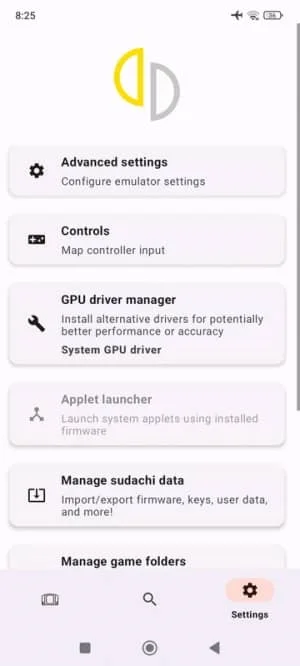
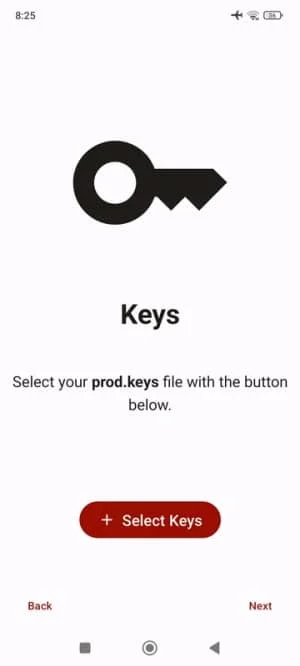
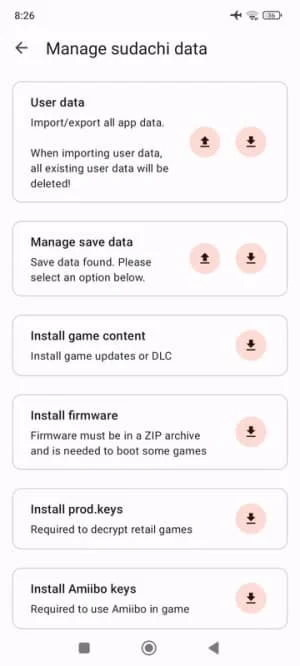
Why Sudachi Emulator is Popular:
- Powerful Performance
I found that playing games on my high-performance PC is simply a pleasure. Although the Switch console is portable, its CPU and GPU performance are limited. On my great computer, games that lag on the Switch now run smoothly. For example, in The Legend of Zelda: Tears of the Kingdom, I can keep a steady 60 frames per second at 4K resolution. - Multi-Game Compatibility
Sudachi Emulator is based on the Yuzu Emulator, so it shares a lot of game compatibility. I’ve tried many mainstream Switch games myself, and they all run fine. I want games that start easily, with no worries about compatibility issues. - Outstanding Performance
I noticed that Sudachi Emulator performs better in some games than other emulators. For example, when playing demanding games, its optimization shines to lead to smoother frame rates and sharper graphics. - Intelligent Performance Tuning
Another pleasant surprise for me is its intelligent performance-tuning feature. If you have a low-end device, it will lower the rendering quality to help keep frame rates high and the game running smoothly. If you have a high-end device, you can fully enhance the graphics and enjoy the ultimate visuals.
Tips for Using Sudachi Emulator:
- Update graphics drivers
At first, I didn’t notice, but the game kept lagging and dropping frames. Later, I realized that the graphics driver was crucial. Update your graphics driver to use Sudachi Emulator on Windows or Android. - Prefer Vulkan
At first, I used OpenGL by default. It worked, but the frame rate felt unsatisfactory. This was especially true during battles or in large scenes. Later, I took the advice of seasoned players and switched to Vulkan mode. This change opened up a new world for me. Vulkan runs best on PCs with dedicated graphics cards and compatible Android devices, leading to better GPU performance, smoother visuals, and lower latency. Of course, if your device is too old or the integrated graphics do not support it, you may have to revert to OpenGL. But as long as conditions permit, I highly recommend trying Vulkan. - Make good use of shader caching
When you play a game for the first time, it may lag at corners or when you enter rooms. This can happen even if your hardware is good. Don’t worry, this isn’t an issue with your device but rather the emulator generating shader caches. It’s like preheating the game. The first time, it will be slow, but after a few plays, it builds caches. Then, it runs smoothly with little lag. - Properly back up keys and firmware
This is an experience gained from my hard lessons. The first time I got prod.keys and title.keys, it took me almost two hours. I spent a lot of time installing tools and importing files. Later, when I reinstalled the system and forgot to back up, I had to start all over again. I’ve learned to package the keys and firmware files right after I extract them. Then, I store them in cloud storage or on an external hard drive. This way, even if I change devices or reinstall the system, I can quickly recover. - Adjust settings according to the device
For mid-range Android devices, scale the resolution to 0.75x or turn on the Vulkan API. On PC, if the graphics card is stressed, lower the internal rendering multiplier.
About Sudachi Emulator APK:
Sudachi Emulator APK lets players enjoy Nintendo Switch games on PC and Android. It eliminates the need for Switch hardware and meets the demand for emulation. It’s written in C++, offers strong performance, starts quickly, and runs stably. Also, it works with more and more games. It also simulates the whole hardware system of the Switch. This includes the processor, graphics card, memory, and input devices. It nearly restores the original console’s operating environment.
Benefits of Using Sudachi Emulator APK:
- High freedom of operation
When it comes to ways of operating, the choices with the Sudachi Emulator are simply too many. You can use touchscreen buttons, Bluetooth controllers, or keyboard and mouse mapping. My favorite is playing action games with a controller, which feels just as natural as on a real Switch. In strategy games, keyboard and mouse mapping provide higher precision and convenience. - Cross-platform support
It doesn’t restrict devices, which is one of the reasons I chose it. I can use it on Windows, MacBook, and Android devices, and it works perfectly on all of them. Although performance varies across different platforms, the core functionalities remain the same. - Multiplayer support
Can you believe it? I played Mario Kart 8 with friends all night using the Sudachi Emulator APK. It supports local multiplayer. Also, it connects to Nintendo’s online servers for games like Animal Crossing and Splatoon 3.
How To Install Sudachi Emulator:
On PC
- Download the latest version of Sudachi Emulator for Windows from this page.
- Unzip the downloaded compressed package to any folder on your computer.
- Double-click sudachi.exe to start the emulator.
- Download valid prod.keys and title.keys files.
- Open the emulator. Click on Tools, then Install Decryption Keys. Next, choose the folder with the key files.
- Confirm that the message Decryption keys were successfully installed appears.
- Download the latest Switch firmware file.
- Click Tools, then Install Firmware. Next, choose the folder with the firmware file. Finally, wait for the installation to finish.
- Place legally obtained NSP or XCI format game files into the specified folder.
- In the emulator, click File > Add New Game Directory and select the game folder.
- Open Emulation > Configure and select the Vulkan API for optimal performance.
- Adjust the resolution and FSR mode.
- Double-click the game in the game list to start playing.
On Android
- Download the latest version of the Sudachi Emulator APK from this page.
- To install from unknown sources on your Android device, first enable the option. Then, run the APK file to finish the installation.
- Copy the legal prod.keys and title.keys files to the device’s storage.
- Open Sudachi, go to settings, select Install Decryption Keys, and import the key files.
- Copy the firmware file to the device’s storage.
- Select Install Firmware in the settings and import the firmware file.
- Place the NSP or XCI game files in the designated folder in the device’s storage.
- In the app, select Add Game Directory and import the game folder.
- In the settings, choose the Vulkan API. Then, set the resolution to fit the device’s performance.
- Click the game icon to enter the game.
Frequently Asked Questions About Sudachi Emulator:
- Does using the Sudachi Emulator require a Nintendo Switch console?
Yes. To use Sudachi legally, first get the keys and firmware files from your Switch. These files help decrypt game data. The emulator doesn’t provide or let users get these files illegally. - How do I get Switch keys?
The correct approach is to extract the keys from your Switch. You need to have a hackable Switch and use relevant tools to dump the key files. Never use unknown key files to avoid copyright infringement or security risks. - Why do games crash or fail to load?
Possible reasons include missing keys/firmware, insufficient device performance, or game compatibility issues. Check the compatibility list. Update the emulator. Or lower the resolution. - Can I use it without a Switch?
You can run Sudachi without a Switch, but you can’t get the keys and firmware legally. So, you won’t be able to run any games. The emulator itself does not contain any games or decryption information. If you don’t have a Switch, don’t try using the Sudachi Emulator APK. Getting unauthorized keys and ROMs is copyright infringement. - Which controllers are supported?
PC, Xbox, and PlayStation controllers are recognized right away. Some home controllers also work. On Android devices, you can connect controllers using Bluetooth. The Sudachi Emulator will then find and map the buttons for you. The official Switch Pro Controller can connect to computers and Android devices. You can use either wired or wireless methods. - Does it support multiplayer?
Yes, it has local and online multiplayer modes. Make sure the game and firmware versions match.





Leave a Reply